Skip to content
FeedBenchBY SMARTFACT

FREE CSV AND JSON FILE CHECKS

Why won't my CSV file import?

Updated

When a CSV file fails to import, the cause is usually the wrong delimiter, a broken header, an unescaped quote, a row with the wrong number of columns, or text that is not UTF-8. FeedBench checks for each of these free in your browser, with no account or upload, and shows the rule, record and column of the problem.

Free to use. No account, email address or trial. Works offline once prepared.

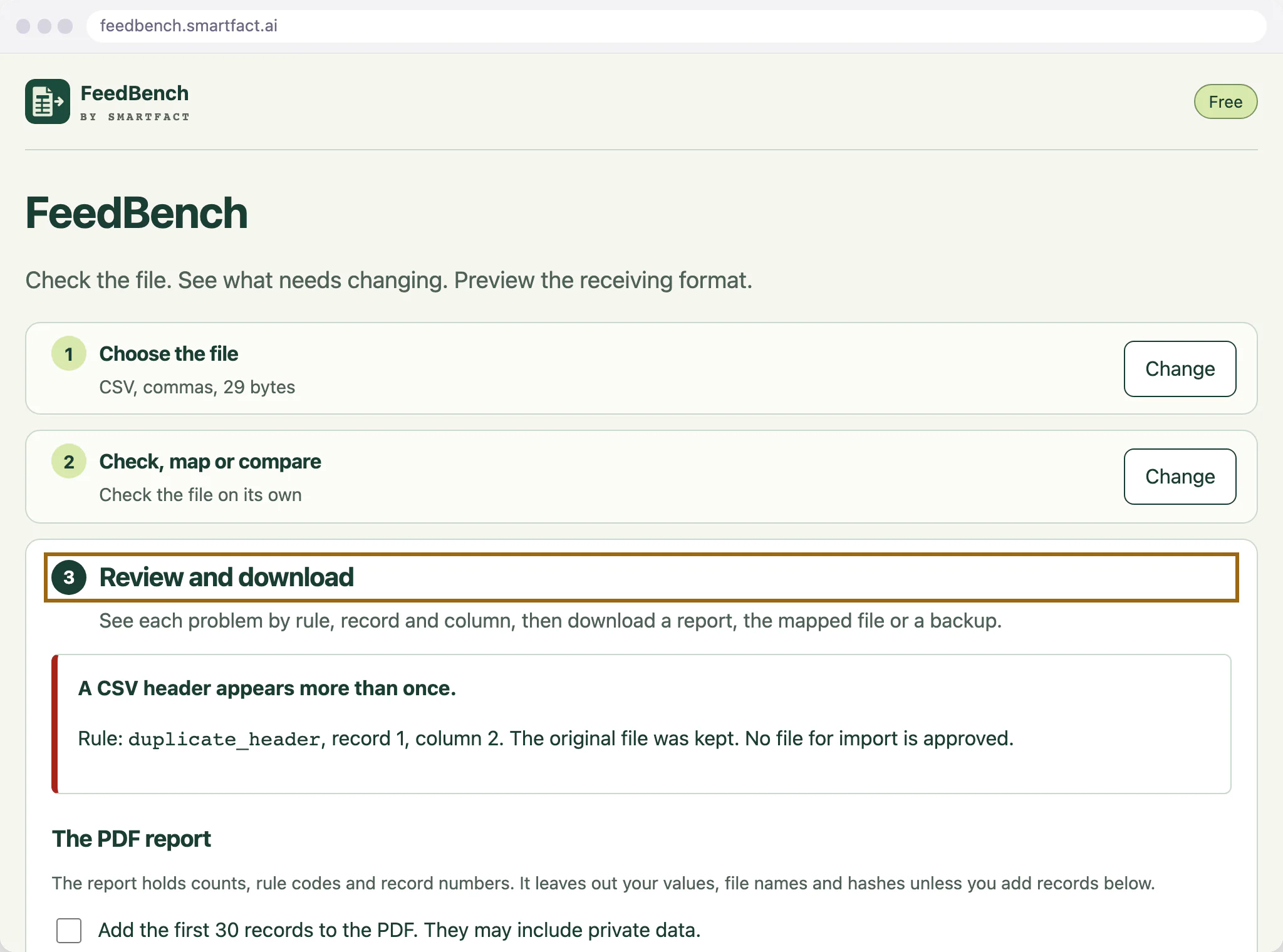
FeedBench refusing a CSV file: a header appears more than once, rule duplicate_header, record 1, column 2
A refused file, with the rule it broke.
Why won't my CSV file import? · 3:21 · Watch on YouTube

Is it the delimiter?

A CSV file separates its columns with a delimiter, usually a comma, but many exports use semicolons or tabs, especially from spreadsheets set up for a decimal comma. If the importer expects commas and the file uses semicolons, each row arrives as one long column. FeedBench does not guess: you choose comma, semicolon or tab and confirm that the first record holds the column names before the check runs.

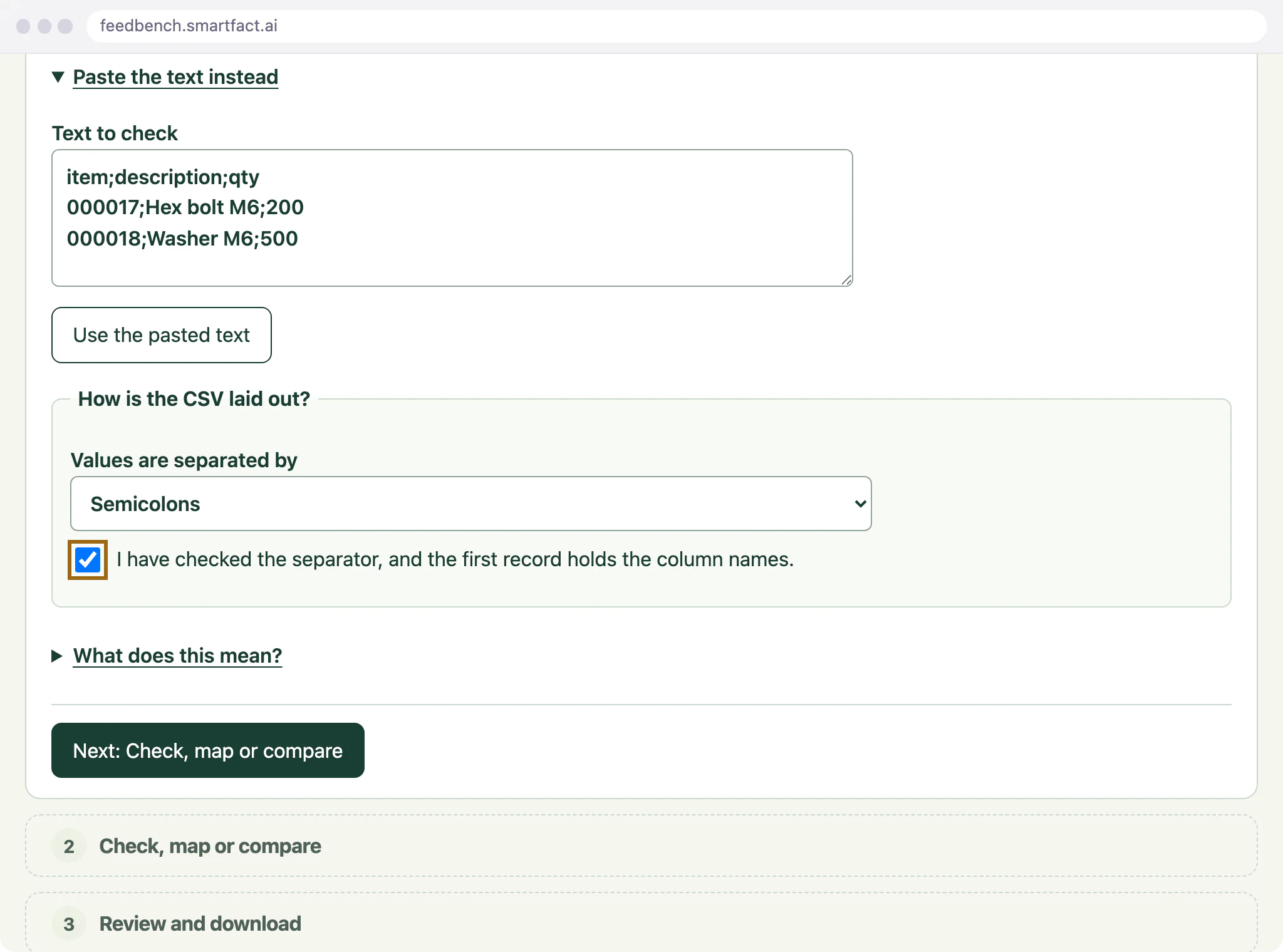
FeedBench Choose the file step with semicolon-separated text pasted in, above the question How is the CSV laid out?
A semicolon file, pasted in: you say how it is laid out.

Is it the header?

Most importers find each column by its name in the first row. A column name that appears twice, or one that is empty, stops the check with the rule, the record and the column. The original file is kept as it is, so you can correct the source and check it again.

Are the quotes and column counts right?

A value that contains the delimiter, a quote or a line break has to be wrapped in double quotes, with any quote inside it doubled. One unclosed quote can swallow the rest of the file, and a row with more or fewer cells than the header shifts every value after it. FeedBench stops at the first such record and names the rule it broke. A file that passes shows its record and column counts and the first 30 records exactly as written.

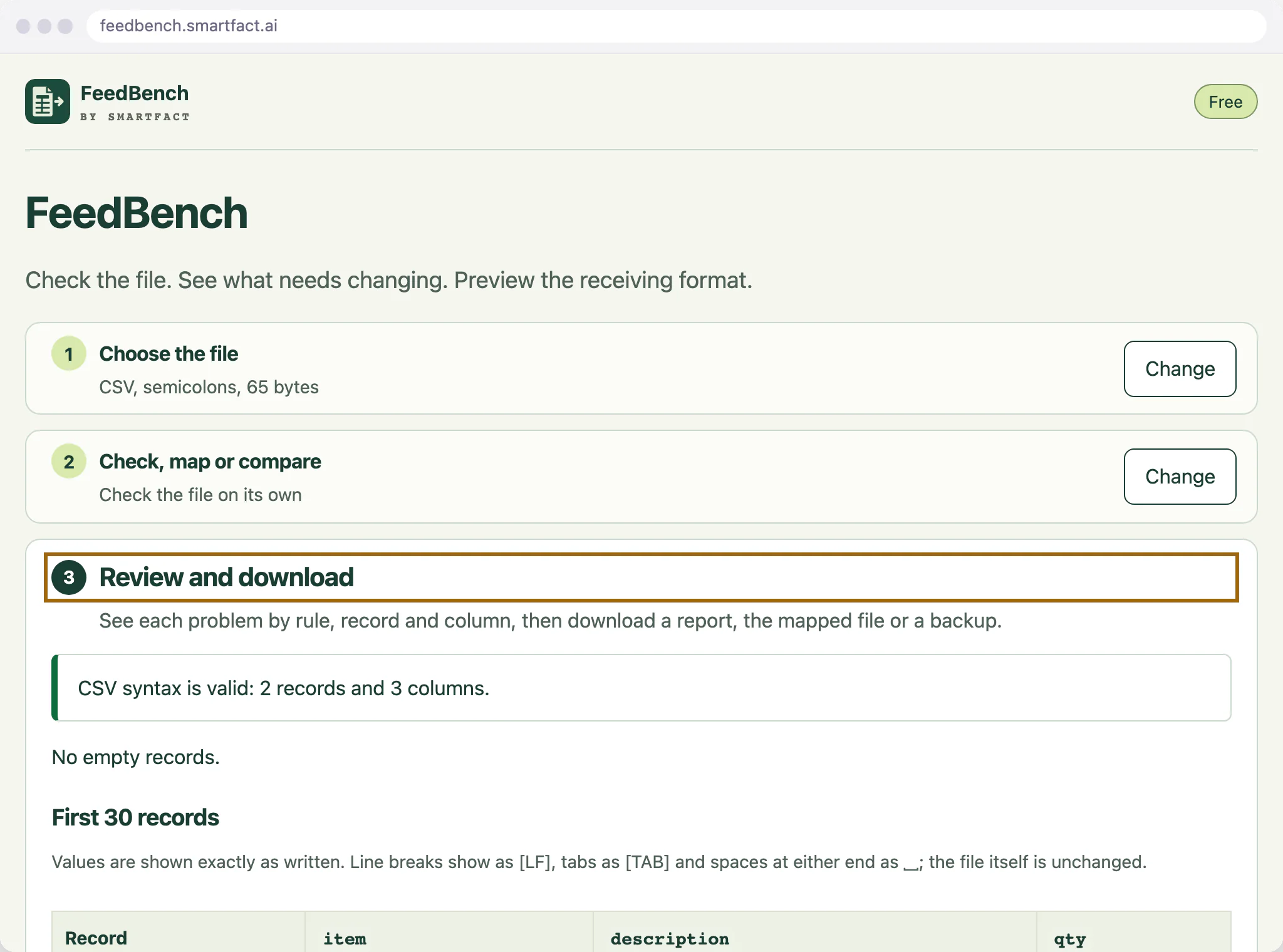
FeedBench result: CSV syntax is valid, 2 records and 3 columns, above the first 30 records shown exactly as written
A file that passes, with every value shown as written.

What happens to leading zeroes and long numbers?

A spreadsheet that opens a CSV file can turn 000017 into 17, and show a long number such as a 20-digit serial rounded or in scientific notation, then save it that way. FeedBench reads the file itself and keeps every cell as text, so 000017 and 17 stay different values, and an edge space shows as ␣. It does not put lost zeroes back: correct the source, or export again with the column formatted as text.

Is the file UTF-8?

Accented letters and symbols such as £ or ° are stored differently in each text encoding. An importer that expects UTF-8 can refuse a file saved in an older encoding, or show its accented letters as garbled characters. FeedBench reads UTF-8 only, and says so: a file that is not valid UTF-8 is refused when you open it, and a leading byte order mark is detected and reported. In Excel, save as CSV UTF-8.

What FeedBench does not do

FeedBench checks the file, not the system it goes into. The checking flow does not import, repair, split or convert files, and it never trims, pads or changes a value. The checking flow does not read XLSX, XML, EDI, other text encodings or CSV without a header row, and a file that passes can still be refused by the receiving system for its data, such as a missing required value or an unknown code.

WHO IT IS FOR

For office, planning and stores staff with a CSV export from one system and an import into another that keeps failing.

WHY USE IT

A spreadsheet can change what you see in a CSV file

A spreadsheet can reformat a CSV as it opens it, so what you look at is not always what the importer reads. FeedBench reads the file itself. Every cell stays text: 000017 and 17 are different values, an edge space is shown as ␣ and a line break inside a quoted cell is shown as [LF]. Nothing is trimmed, padded or converted, so you see each value exactly as it is in the file.

HOW IT WORKS

FeedBench in three steps.

  1. 01

    Choose or paste the file

    Choose a CSV file up to 5 MiB, or paste the text. Pick comma, semicolon or tab and confirm that the first record holds the headers. FeedBench does not guess either.

  2. 02

    Check it

    Choose Check now. A broken quote, a repeated or empty header or a record with the wrong number of cells stops the check with its rule, record and column. A file that is not valid UTF-8 is refused when you open it. The original is never changed.

  3. 03

    Read the result

    A file that passes shows its record and column counts, any all-empty records kept for review and the first 30 records exactly. Download a diagnostic PDF or CSV that leaves your values out.

A CONCRETE EXAMPLE

000017 and 17 are different codes

An item list exported as part_no,description passes with 1,248 records and 2 columns. The preview shows record 214 as 000017, record 215 as 17 and the description Washer M8␣ with a trailing space. FeedBench does not decide that 17 should be 000017 or remove the space. You correct the source, or make an explicit change in a mapped copy.

USED IN PRODUCTION

When the same file arrives every day.

FeedBench checks one file at a time, by hand. Two SmartFACT services handle the data work that repeats: keeping the lookup tables your applications need, and turning order exports into checked kits. Both are in early access, with scope agreed at onboarding.

Free tier

SmartFACT Data

If the same customer or supplier values keep changing, ConfigSheets gives your team a maintained reference table, checked edits and saved versions. It prepares reviewed files for LabelRules and KitProof; agree the receiving workflow during onboarding.

Free tier

KitProof

When an order export decides what goes into each kit, KitProof starts from a CSV export of your orders, builds each kit's checklist from approved plain English component rules and checks every scan against the expected parts and quantities.

BEFORE YOU START

Common questions.

Which CSV files does it read?

UTF-8 text with comma, semicolon or tab separators and a header row, up to 5 MiB, 10,000 records and 64 columns. A leading byte order mark is detected and reported. Other encodings and XLSX are not read, so save the sheet as CSV UTF-8 first.

Why does it stop at the first problem?

A broken quote or an uneven record means the rest of the file cannot be read reliably. FeedBench reports that rule, record and column instead of guessing, and a stopped check says nothing about the records after it. Fix the problem and check again.

Can it check JSON too?

Yes. FeedBench reads strict JSON, refuses a repeated property name and keeps every number exactly as written, so 9007199254740991.1 is not rounded. It counts objects, arrays and values and can tell whether two JSON files are exactly equal. Mapping and receiving checks are for CSV only.

Why am I getting an error when uploading a CSV file?

Either the importer cannot read the file's structure, or it does not accept the data. Structure problems are the wrong delimiter, a repeated or empty column name, a broken quote, a row with too many or too few cells, or text that is not UTF-8: FeedBench finds these and names the record and column. Data problems, such as a missing required value or a code the system does not know, are checked by the receiving system.

How can I resolve data import errors?

Find the exact record and rule first, then fix the source rather than a copy edited by hand. Check the file in FeedBench, correct the problem in the system or sheet it came from, export it again as CSV UTF-8 and check it once more before importing. Keep identifier columns as text so that leading zeroes survive.

What are the current limits?

FeedBench checks and previews files. It does not import, repair or synchronise anything, and it never silently trims, pads, converts or approximately matches values. It reads UTF-8 CSV with a confirmed comma, semicolon or tab delimiter and a header row, and strict JSON, up to 5 MiB per file and 15 MiB per project. CSV checks cover up to 10,000 records and 64 columns, a reference file up to 5,000 records, and a check stops after ten seconds. Mapping uses source columns, exact constants and exact lookups only, with no formulas, unit conversion, splitting or merging. JSON is inspected and compared for exact equality, not mapped. The file-checking/mapping flow does not read XLSX, XML, EDI, other text encodings or CSV without a header row. Candidate checks for SmartFACT layouts never confirm a live import. Structured-data tools accept up to 1 MiB of UTF-8 input, 32 nesting levels and 50,000 JSON values/members or XML nodes, with output up to 5 MiB. Schema checks use a closed JSON Schema 2020-12 subset: type (excluding integer), properties, required, additionalProperties, items, string/item lengths, boolean schemas and string/boolean/null enum. References, patterns, formats, composition and numeric constraints are refused. XML support is formatting only, with no DTD, external entity, XSD or import support; indentation can change whitespace text nodes. Mixed text and xml:space-preserved subtrees remain unchanged. New structured inputs are temporary and are not included in saved file-checking projects or backups.

What happens to my data?

Your files stay in this browser. A temporary project keeps them in memory while the tab is open; Save on this device keeps the project, source files included, until you delete it. Nothing is uploaded, and there is no account or email step. Default reports leave out your values, file names and hashes. Google Analytics is optional and loads only after you accept; it never receives file contents, file names, values or results. Use Analytics settings to change your choice; see /privacy/.

FREE TO USE

Put FeedBench to work.

Open the free tool and start with one known example.

Check a file free →

THE SMARTFACT SUITE

SmartFACT services
and free tools.

Automate factory decisions with rules you describe in plain English. Explore focused SmartFACT services, plus free tools for everyday checks. The free tools need no account.

Free tierSuggested next step

SmartFACT Data

Maintain reference tables with ConfigSheets or bring shop orders into SmartFACT through reviewed connectors. Check changes and deliver data to the products that use it.

Explore SmartFACT Data ↗
Free tier

LabelRules

Describe label rules in plain English. Automatically select layouts, resolve customer codes and check each job before printing.

Explore LabelRules ↗
Free tier

KitProof

Turn plain English component rules into automatic kit checklists, then check scans against the expected parts and quantities.

Explore KitProof ↗
Free tier

WorkSteps

Turn plain English rules into automatic step selection for each unit, with required evidence and a record of completed work.

Explore WorkSteps ↗
Free tier

FactorySpec

Apply approved product rules and calculations automatically to turn dimensions and options into manufacturing requirements.

Register early-access interest ↗
Early access

ParcelOffice

Scan the work order and the parcel choice to book the courier and print the labels. Approved plain English rules recommend or choose the parcel.

Explore ParcelOffice ↗
Free tier

RefillFlow

Scan an empty container to send the right refill request to stores. Approved plain English rules set the stores queue, priority, ticket printer and escalation.

Explore RefillFlow ↗
Free tier

RemnantRack

Label each offcut, find a suitable length before cutting new stock and record what you used. Approved plain English rules decide what to keep and where it goes.

Explore RemnantRack ↗
Free tier

ToolCustody

Check a shared tool before handover, record who has it and keep damaged or overdue tools out of the next issue. Start free with one crib.

Explore ToolCustody ↗
Free tier

StoresFlow

Receive, put away, reserve and issue stores material with barcode checks, keeping held, reserved and available stock apart. Start free with one stockroom.

Explore StoresFlow ↗
Free tier

LotTrail

Follow a lot or serial number through the records your factory already keeps, with the source of each link and the gaps shown. Start free with two declared sources.

Explore LotTrail ↗
Early access

CheckStation

Scan an identified unit to get its approved final-inspection checks, then record exact readings with their result, holds and release history.

Register early-access interest ↗
Free tier

ReclaimStation

Book returned units in, recover and label the usable parts, release them independently and record the unit each goes into. Start free with one product family.

Explore ReclaimStation ↗
Free tier

SmartFACT Purchasing

Collect purchase requests, approve supplier orders and track what is still to arrive. Start free at one site.

Explore Purchasing ↗
Free tier

SmartFACT Automation

Describe, test, approve and audit the automation rules of every SmartFACT product in one place. Included with each product’s paid plan, or on its own.

Explore Automation ↗
Free tool

ScannerBench

See the text and key events your keyboard scanner sends. Compare them with the value you expected.

Test a scanner ↗
Free tool

PrintBench

Print a known PDF, measure its reference marks and compare scans from the printed codes.

Check a print ↗
Free tool

CardBench

Create 100 × 50 mm bin and rack cards with Code 128 or QR, from one record or a CSV.

Make bin cards ↗
Free tool

CountBench

Count stock by location with a barcode scanner, compare it with a stock file and export the results.

Start a free count ↗
Free tool

BarcodeBench

See exactly what a scanned barcode contains, with hidden characters shown and GS1 fields, check digits and dates explained.

Inspect a barcode ↗
Free tool

MatchBench

Scan a reference and each label, see an exact match or the first difference, and download the results.

Start a free comparison ↗
Free tool

TagBench

Scan an item or location, note what needs attention, print a review tag and keep a review list.

Make a free tag ↗
Free tool

FindBench

Load your own parts and locations CSV, scan a code and see every location it lists.

Start a free lookup ↗
Free tool

ManifestBench

Check cartons, pallets or serial numbers against a list with a phone or scanner and see what is missing.

Start a free check ↗
Free tool

FeedBench

Check CSV and JSON files exactly as written, preview a column mapping and compare two versions by key.

You are here
Free tool

CycleBench

Time work cycles and changeovers on a phone, record interruptions with reasons and download the results.

Start a free study ↗
Free tool

OffcutBench

Label the offcuts on your rack, find a piece long enough before cutting new stock and record what you used.

Track offcuts free ↗
Free tool

TraceBench

Load one or two CSV exports and follow a lot or serial forwards or backwards, with the row behind every link.

Start a free trace ↗
Free tool

ReclaimBench

Record the parts recovered from each return, label them with a QR code, check them and record the unit each one goes into.

Track recovered parts free ↗
Free tool

GuidBench

Generate GUIDs, UUID v4 and v7, ULIDs and Nano IDs, format and download batches, or inspect a UUID in your browser.

Generate identifiers ↗
Free tool

OctetBench

Inspect and edit text, hex, Base64 and binary bytes in your browser, reveal hidden characters and compare byte sequences.

Inspect some bytes ↗
Free tool

PatternBench

Test JavaScript regular expressions in your browser, inspect matches and captures, preview replacements and check expected cases.

Test a pattern ↗
Help

SmartFACT Help

Step-by-step guides and interactive demonstrations for the SmartFACT suite. Read the instructions, watch a task or practise with real product screens and sample data.

Open SmartFACT Help ↗